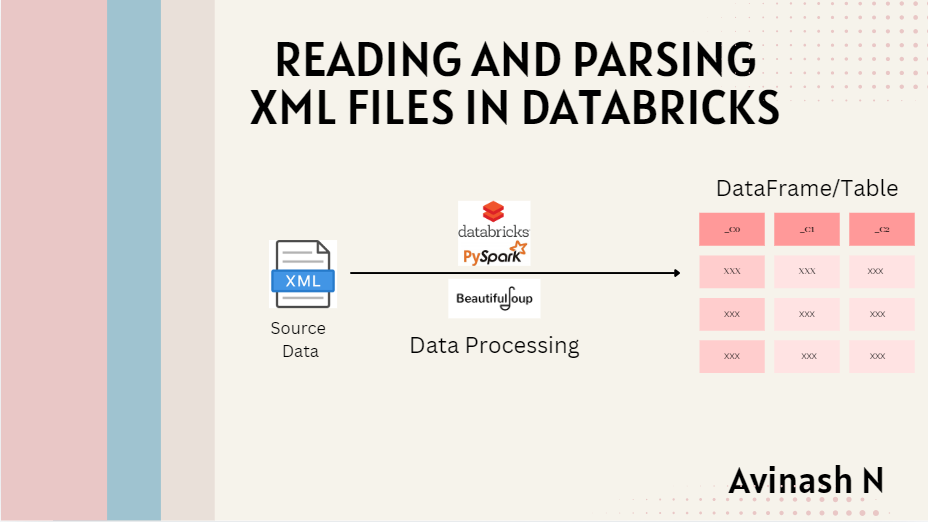
Reading and Parsing XML Files in Databricks
Working with XML files and convert it into a structured DataFrame for downstream use can be a common requirement when dealing with structured data formats, especially in legacy systems.
Scenario
Imagine you're working with an insurance dataset, stored in XML format, that contains details such as audit periods, effective dates, vehicle types, and more. Our goal is to extract specific fields from the XML file and create a structured DataFrame for further analysis.
Here’s a step-by-step guide on how to handle XML files in Databricks.
Step 1: Import Required Libraries
First, we need to import the necessary libraries for parsing the XML data and working with PySpark.
from bs4 import BeautifulSoup
from pyspark.sql.types import StructType, StructField, StringType
In this case, we're using BeautifulSoup from the bs4 library to parse the XML data, and the pyspark.sql.types module to define the schema for our DataFrame.
Step 2: Read and Parse the XML File
Next, we read the XML file from the specified path and use BeautifulSoup to parse its contents.
xml_file_path = "file_path"
with open(xml_file_path, 'r') as f:
    data = f.read()

data = BeautifulSoup(data, "xml")
Here, the BeautifulSoup object allows us to parse the XML file as a structured document. This enables us to search for specific elements using tags like find() and find_all().
Step 3: Extract Data from XML Tags
Find the tag under which the actual data resides. In my case it is in "session" tag.
We loop through the session tags in the XML and extract important fields such as AuditPeriod, EffectiveDate, State, and others. The extracted data is stored in a list of dictionaries, which will be used to create the DataFrame.
sessions = data.find_all('session')
row_data=[]

for session in sessions:
    audit_period = session.find('AuditPeriod').text if session.find('AuditPeriod') else None
    EffectiveDate = session.find('EffectiveDate').text if session.find('EffectiveDate') else None
    year = EffectiveDate.split('-')[0] if EffectiveDate else None
    QuoteDate = session.find('ChangeDate').text if session.find('ChangeDate') else None
    Quote = session.find('QuoteNumber').text if session.find('QuoteNumber') else None
    seq = 1
    state = session.find('State').text if session.find('State') else None
    TypeOfVehicle = session.find('sValue').text if session.find('sValue') else None
    UW = session.find('UserUnderwriterID').text if session.find('UserUnderwriterID') else None
    Insured = session.find('Name').text if session.find('Name') else None

    row={
        'AuditPeriod': audit_period,
        'Year': year,
        'EffectiveDate': EffectiveDate,
        'QuoteDate': QuoteDate,
        'Quote': Quote,
        'seq': seq,
        'state': state,
        'TypeOfVehicle': TypeOfVehicle,
        'UW': UW,
        'Insured': Insured
    }
    row_data.append(row)
Here, we use the .find() method to extract the text of each tag and handle the case where a tag might be missing by using a conditional expression (else None). The extracted data is appended to the row_data list.
Recommended by LinkedIn
Step 4: Define the DataFrame Schema
To ensure our data is structured properly in the resulting DataFrame, we define a schema that maps the fields we extracted from the XML to appropriate Spark data types.
schema = StructType([
    StructField("AuditPeriod", StringType(), True),
    StructField("Year", StringType(), True),
    StructField("EffectiveDate", StringType(), True),
    StructField("QuoteDate", StringType(), True),
    StructField("Quote", StringType(), True),
    StructField("seq", StringType(), True),
    StructField("state", StringType(), True),
    StructField("TypeOfVehicle", StringType(), True),
    StructField("UW", StringType(), True),
    StructField("Insured", StringType(), True)
])
The schema includes all the fields we parsed from the XML, specifying that each is of type StringType() and allowing null values (True).
Step 5: Create and Display the DataFrame
Finally, we convert the list of dictionaries (row_data) into a PySpark DataFrame using the schema defined earlier and display the DataFrame.
df = spark.createDataFrame(row_data, schema)
display(df)
This will generate a well-structured DataFrame, making it easy to perform further analysis, transformations, or export the data as needed.
Output
Conclusion
Handling XML files in Databricks can be made simple with the help of BeautifulSoup for parsing and PySpark for structuring the data. By following this approach, you can easily read, process, and transform XML data into a format that is ready for downstream use cases such as analytics, machine learning, or reporting.
This method is scalable and can handle large datasets with nested XML structures, making it a powerful tool for data engineers working with legacy systems.
Note:
I've used BeautifulSoup for XML parsing, but you can also use the xml.etree.ElementTree library for similar tasks. Additionally, I chose to use a PySpark DataFrame, assuming the dataset will be large. If you're working with smaller datasets, you can opt for a pandas DataFrame instead for faster development and simpler workflows.
Happy Learning!
#Databricks #XMLProcessing #PySpark #BeautifulSoup #DataParsing #ETL #DataTransformation #TechBlog