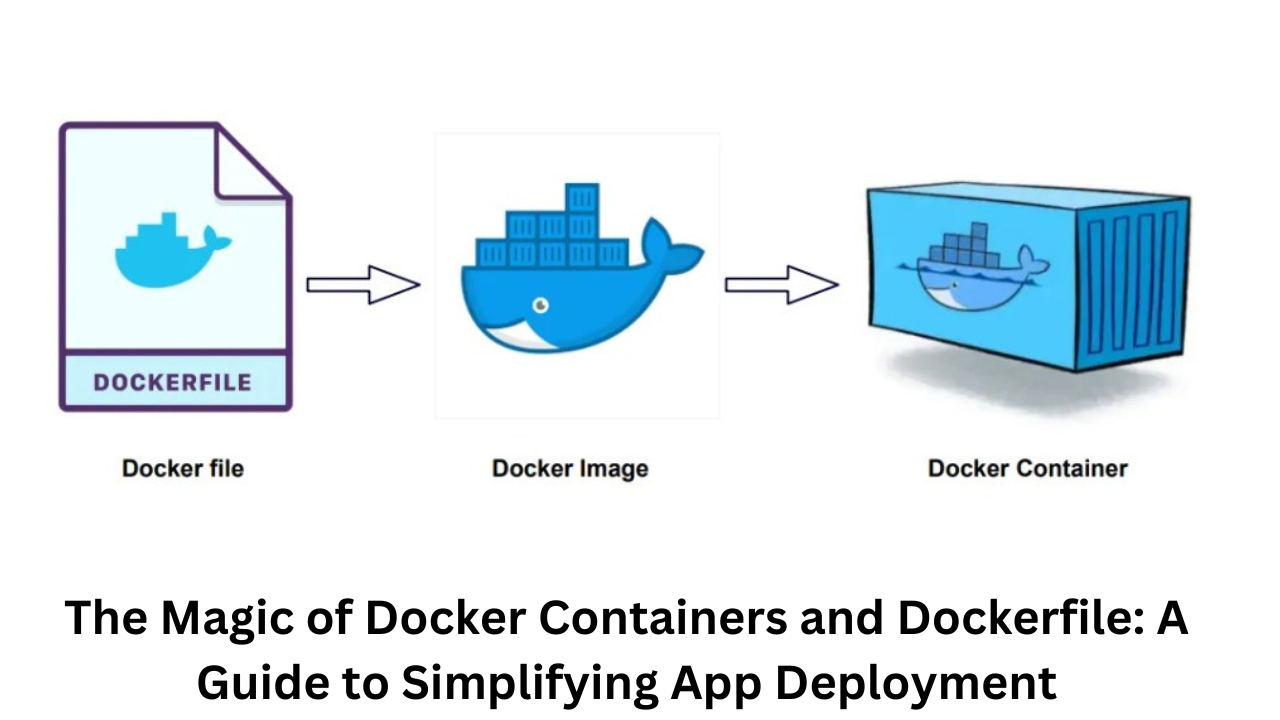
The Magic of Docker Containers and Dockerfile: A Guide to Simplifying App Deployment
Hello, DevOps enthusiasts and tech explorers! Today, I’m diving into two core aspects of containerization: Docker Containers and Dockerfiles. For anyone looking to streamline the deployment process and optimize workflows, understanding these two is essential. With containers, we ensure consistency across environments, and with Dockerfiles, we gain precision in building those containers. Let’s explore how they work together to create a streamlined pipeline for modern app deployment.
Understanding Docker Containers
Let’s start with the basics. In a world where applications need to run seamlessly across various environments, Docker Containers are a game-changer. A Docker Container is a lightweight, standalone, and executable package that encapsulates everything an application needs to run, from the code and libraries to dependencies and system tools. Think of it as a portable “box” that holds your application in a stable, isolated environment.
Unlike virtual machines, which require separate operating systems, Docker Containers share the host’s OS kernel, making them much more efficient. Containers can start almost instantly, consume fewer resources, and enable high-density deployments. They provide isolated environments that promote consistency across development, testing, and production—no more "it works on my machine" issues!
Dockerfiles: The Blueprint of Your Containers
Docker Containers may look like magic, but Dockerfiles are the wizards behind the curtain. A Dockerfile is a simple text document containing a series of instructions on how to build a Docker image. By defining each step explicitly, you control exactly what goes into the image, leaving no room for configuration inconsistencies.
Here’s a step-by-step look at how Dockerfile commands guide container creation and why this blueprint is so powerful:
Key Commands in a Dockerfile
FROM: Every Dockerfile begins with this command to specify a base image, like ubuntu, node, or alpine. This choice determines the OS environment and dictates the essential binaries and libraries your application needs. FROM ubuntu:latest
RUN: The RUN command lets you execute commands on the image as you’re building it. This is commonly used to install dependencies. RUN apt-get update && apt-get install -y python3
COPY or ADD: These commands copy files or directories from your local system into the Docker image. COPY is the preferred choice for most cases due to its simplicity, but ADD can handle more advanced functionalities, such as remote URL downloads. Dockerfile Copy code COPY . /app
WORKDIR: This command sets the working directory inside the container, where subsequent instructions will be executed. It improves readability by clarifying where commands will operate. Dockerfile Copy code WORKDIR /app
CMD: CMD specifies the default command to run when the container starts. If a user provides a different command when launching the container, it overrides CMD. Generally, it’s used to run the application within the container. CMD ["python3", "app.py"]
EXPOSE: This optional command specifies the network port the container listens on at runtime. Though it doesn’t make the port accessible, it serves as documentation and a signal to networking tools like Docker Compose. EXPOSE 5000
ENTRYPOINT: Like CMD, ENTRYPOINT specifies what command to run, but it doesn’t override as easily. It’s often combined with CMD for added flexibility, allowing CMD to define arguments passed to ENTRYPOINT. ENTRYPOINT ["python3"]
CMD ["app.py"]
Recommended by LinkedIn
Building and Running Your Container
With your Dockerfile ready, building a Docker image is a single command away. Let’s go through the basic steps to move from Dockerfile to a running container.
Build the Image: In the same directory as your Dockerfile, run the following command to build an image: docker build -t ekangaki_app .
This command tells Docker to use the Dockerfile in the current directory (indicated by .) to build an image named my_app.
Run the Container: Once the image is built, you can create a container from it. Running the container is as easy as: docker run -d -p 5000:5000 ekangaki_app
This command tells Docker to run the my_app image in a detached mode (-d) and map port 5000 on the host to port 5000 in the container. And there you have it—your application running inside a Docker Container!
Why Dockerfile Matters for DevOps
For DevOps professionals, Dockerfiles bring reliability and speed to deployment pipelines. Here’s why Dockerfiles are invaluable:
Consistency Across Environments: Dockerfiles let you automate the setup of the environment so that it’s consistent, whether on a developer’s laptop or a cloud server.
Version Control: A Dockerfile is code, which means it can be version-controlled along with the application source code. This enables effective rollback strategies and a clear history of environment changes.
Automation: Dockerfiles enable the seamless integration of container creation into CI/CD pipelines. They remove manual configuration steps and streamline deployments.
Best Practices for Writing Dockerfiles
To get the most out of Dockerfiles, follow these best practices:
Final Thoughts
Docker Containers and Dockerfiles are essential skills in the DevOps toolkit. With Docker’s client-server architecture, a flexible container runtime, and the power of Dockerfiles, it has never been easier to streamline development and deployment. Whether you’re managing microservices, testing environments, or full applications, Docker provides an efficient and reliable way to handle it all. I hope this breakdown of Docker Containers and Dockerfiles helps you unlock new efficiencies in your own projects.


