Launch and Configure docker container using ansible-playbook
Introduction
Even this is a very rare use case where we need to configure the container using ansible. Enabling ssh inside the container is not a good practice, but in some cases, we might need to do this.
- My use case was to set up an ansible practical lab where I can use multiple hosts of different Linux instantly without wasting more resources. This gives me the power to launch each time fresh container and test my playbooks on multiple os distributions with diff versions.
- One more use case will be, you have one server in development and you are deploying many microservices with multiple teams, then you can deploy microservices using container and give ssh access direct to the container to teams for troubleshooting instead of giving direct access to the server.
Problem statement
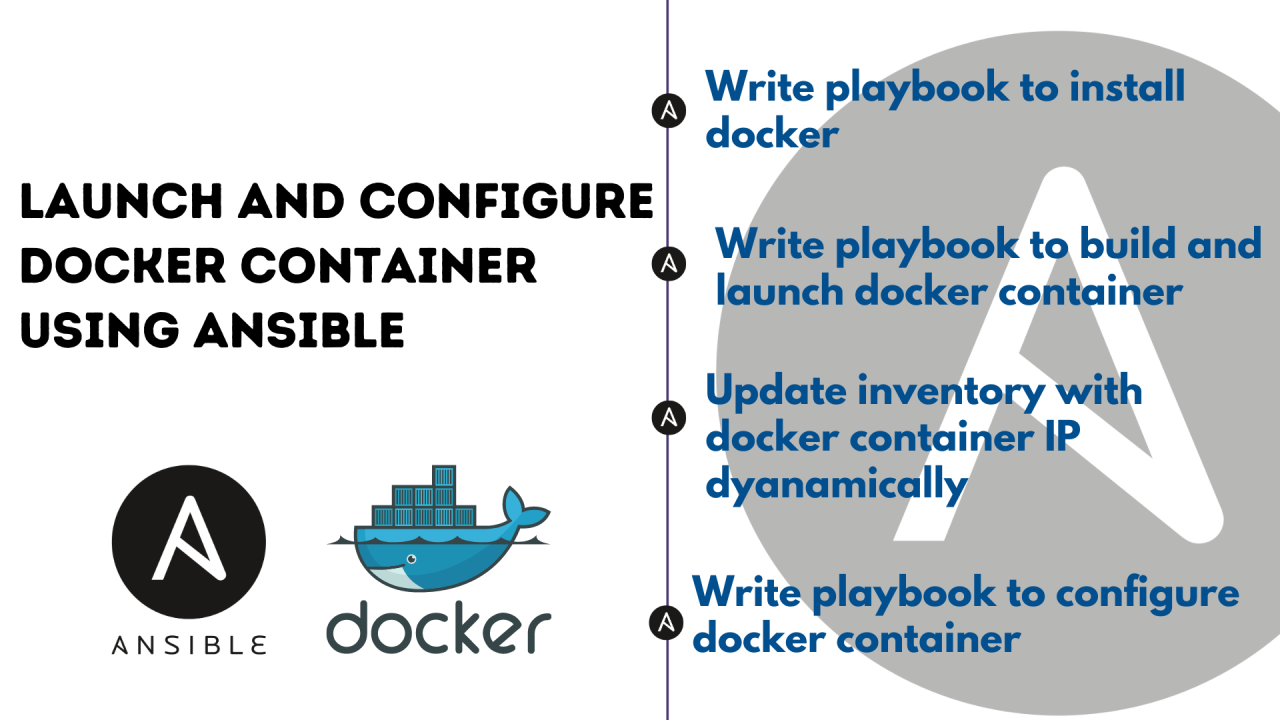
Write an ansible playbook to
- Install docker-engine on the host node.
- Launch Container and expose it
- Update the inventory file with container IP dynamically
- Configure deploy python app on the container
This article covers a step-step guide to solve our problem statement.
Write Ansible Playbook to install docker-engine.
Here, I am writing the playbook for RedHat or CentOS.

The above playbook will add the yum docker repo and install the docker-engine community version. To handle docker containers from ansible, the requirement is to install docker SDK, to install that we will install pip, and using pip we will download docker SDK. Lastly, start a docker service.
$ ansible-playbook docker-configure.yml

Create Dockerfile
We want to create a container in such a way that, we can connect the docker container using ssh public key authentication. Also, connect using ansible and configure the container.
Generate ssh key.
$ ssh-keygen -f ./mycontainerkey
above command will create two files, private and public key. we want to add a public key to the container.
Now let's write Dockerfile

Above Dockerfile taking ubuntu:latest as the base image. then we created one use with 'docker' username and add created ssh public key to authorized-keys and give docker user Sudo power inside the container.
As you can notice we are also using entrypoint.sh file, let's create that also, which will start ssh service and create log files.

now we have Dockerfile ready, its time to launch the docker container using ansible and update inventory dynamically according to container IP.
We want to deploy a python app container on the flask server, keeping in that mind, we will expose ports according to that.

As you can see I have defined a few variables,
dockerfile_folder: It is the folder where we have store Dockerfile, mycontainerkey.pub, and entrypoint.sh. we want to copy all these files to the host for creating an image.
docker_image_name: Give the image name that we are creating from Dockerfile
docker_container_name: Assign container name that docker will launch
patting_ssh_port: Assign port number of the server that will be exposed for ssh so the team can log in to the container.
patting_http_port: we want to deploy a python app container, I want the client to connect to port 80 of the docker host and they will be connected to the container.
In this file, we are copying Dockerfile and building the image, and then launching it using the ansible docker module.
After that, we update the inventory file using lineinfile by adding a docker container IP address. lineinfile module searches [containers] pattern and after this line, it adds a new line. (Make empty group [containers] inside your inventory file. )
$ ansible-playbook docker-container.yml

we can cross-check using the $ docker ps command

- Write ansible-playbook to deploy python app.
Let's write a simple hello world python flask app for the demo.
//app.py


we want to deploy this application on the container we launched in the above steps. We will write one playbook which will deploy this application over the docker container.

The above playbook will copy the source code to /srv/ folder then install pip3. After that, it will install the required libraries using pip and finally run our flask app.
$ ansible-playbook deploymyapp.yml

Now you open your browser can test the application is working or not. We have exposed the container's 8080 port to the host machine 80 port. so copy the host machine IP and paste into the browser.

If you have successfully completed here... then You deserve a pat on the back.
Let me show you now complete directory structure, so you will get a complete idea.

You can find all the files in the repository at Playbook/Docker_container location. Don't forget to star it, that keeps me motivated to solve challenges and to write about them.
If you have any doubts or something improvement needed in this blog, please feel free to reach out to me on LinkedIn.
I hope you learned something new and find ansible more interesting. Let me know your thoughts about ansible and how do plan to use ansible?