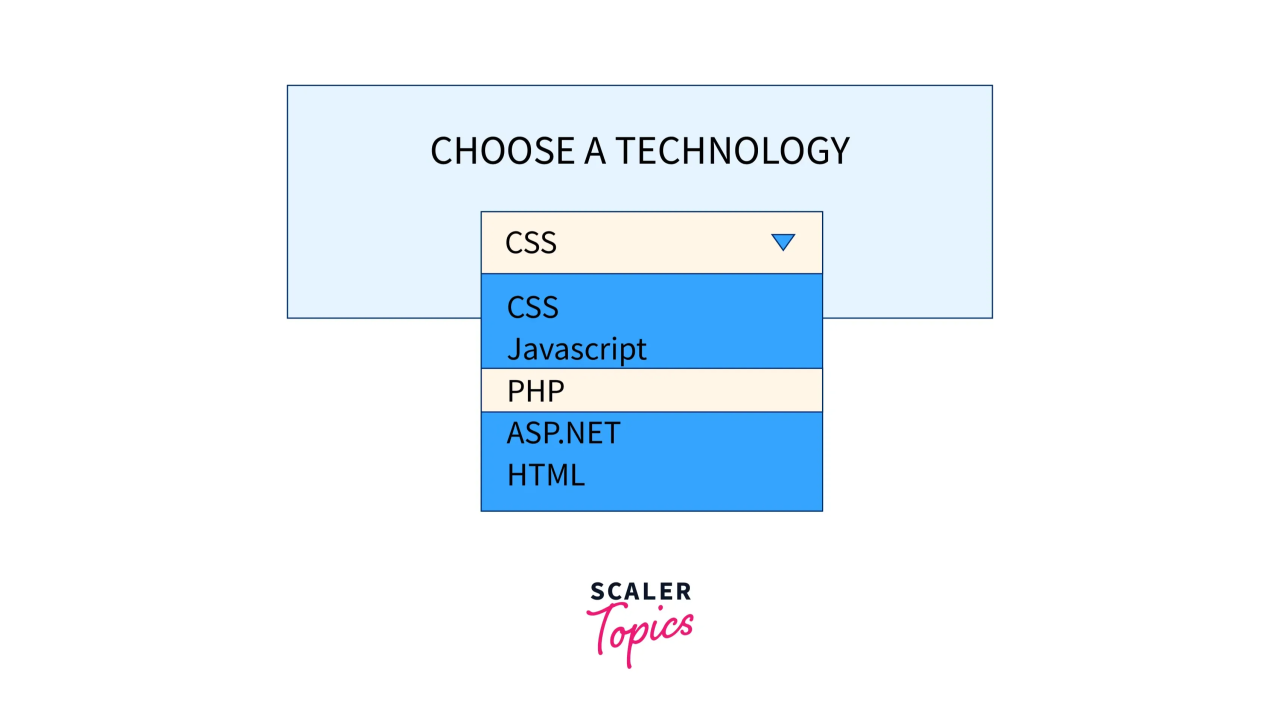
🚨 Faced an Unexpected Dropdown Issue in Selenium Automation — and Solved It!
Today I came across a UI interaction issue while automating a simple test case using Java Selenium — something many testers might run into without realizing.
🔍 The Scenario:
Sounds straightforward, right?
But after selecting a dropdown item, the dropdown didn’t close. When the script tried to click the button, Selenium threw:
❌ ElementClickInterceptedException The dropdown was still visually overlaying the button!
🧠 Investigation:
At first, I thought my code was wrong. But then I realized: The UI state hadn’t changed — the dropdown was still open and blocking the next action.
🛠️ The Solution:
I used the Actions class to simulate a real user interaction and close the dropdown before clicking the button.
Here’s the key part of the code:
dropdownOption.click();  // Step 1: Select from dropdown
Actions actions = new Actions(driver); actions.moveToElement(buttonElement).click().perform();  // Step 2: Collapse dropdown buttonElement.click();  // Step 3: Trigger button action
✅ The first click collapses the dropdown ✅ The second click executes the button’s functionality
💡 Takeaway:
Sometimes your automation script fails not because of bad code, but because the UI didn’t behave like a user would expect. Adding small, human-like behavior using Actions can make a huge difference!
I’m sharing this because someone out there might be stuck with the same ElementClickInterceptedException.
If you’ve faced something similar or found a cleaner workaround, I’d love to hear it! 👇
#selenium #java #automationtesting #qacommunity #testautomation #webdriver #qaengineer #codingtips #problemsolving #softwaretesting