Creating Custom Scrollbars for Your Website Using Web Components: Overcoming iOS Safari Limitations with Jest Testing
Introduction
For years, custom scrollbars have been a favorite design element among web developers, allowing them to enhance aesthetics and provide a refined user experience. However, not all browsers and operating systems support custom scrollbar styling. One major challenge is iOS Safari, which, since the release of iOS 14 on September 16, 2020, has ceased to support CSS-styled scrollbars, as confirmed by Apple engineers. This limitation forces developers to rely on default system-defined scrollbars.
Despite this restriction, there is a way to implement a custom scrollbar that functions seamlessly across all browsers, including iOS Safari. In this article, we will create a web component that emulates a fully customizable scrollbar and explore how to ensure its reliability through Jest testing.
Why Use Web Components?
Web components offer a modular and reusable approach to front-end development. By encapsulating functionality into independent elements, developers can create consistent, portable UI components that integrate effortlessly across different projects. The main advantages of web components include:
Why Use Jest for Testing?
Jest is a robust JavaScript testing framework that simplifies the process of validating component behavior. It supports various testing methodologies, including unit testing, integration testing, and UI interaction testing, making it an ideal choice for ensuring our custom scrollbar component functions as expected.
Understanding the Problem
CSS-based scrollbars are not universally supported, leading to inconsistent user experiences across different platforms. To address this issue, we will develop a custom HTML element that functions as a fully controllable scrollbar. Instead of relying on native browser scrollbars, our solution will introduce an independent, stylized scrollbar inside the target container.
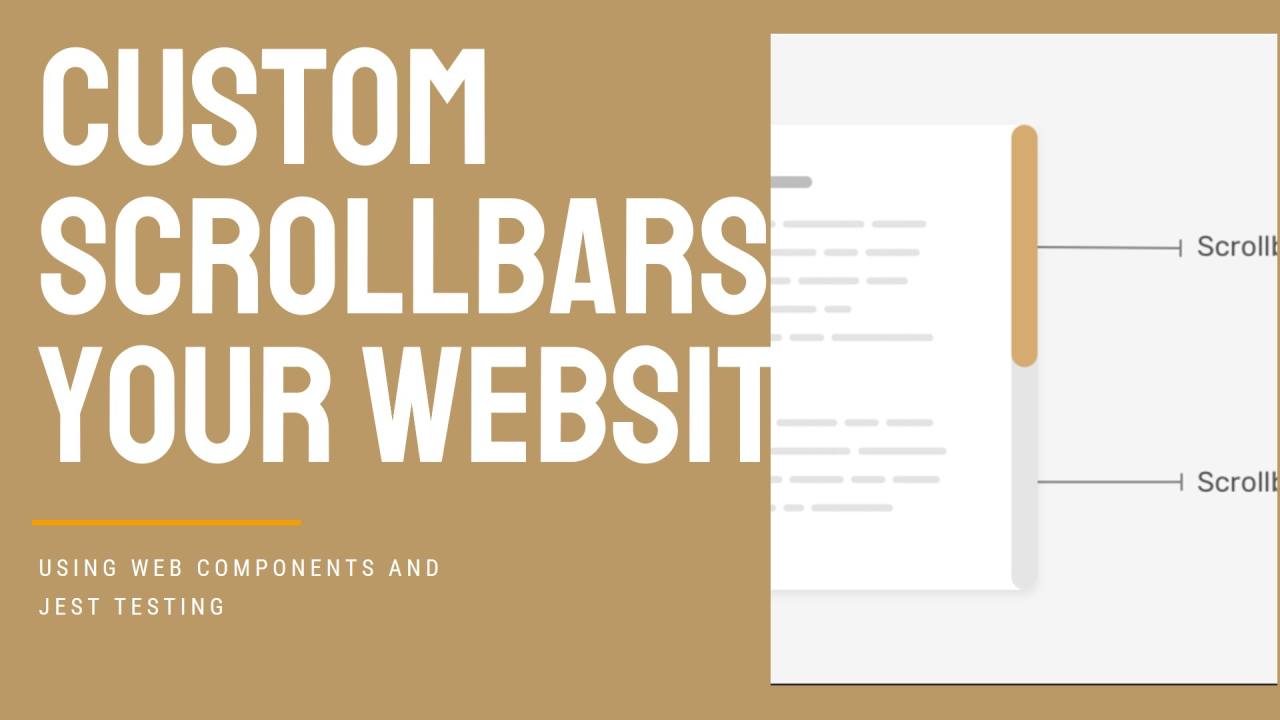
Essential Parts of a Scrollbar:
Step 1: HTML Structure
We start by defining the basic structure required for our custom scrollbar. It consists of a target container that holds the scrollable content and our web component:
<!-- Layout container with custom scrollbar -->
<div class="container">
  <custom-scrollbar data-target-id="scrollableElement"></custom-scrollbar>
  <div id="scrollableElement"><!-- Scrollable content goes here --></div>
</div>
Step 2: Styling with CSS
To ensure our scrollbar is visually appealing, we apply styles to define its appearance and behavior:
.container {
  position: relative;
  max-width: 400px;
}

#scrollableElement {
  position: relative;
  max-height: 200px;
  border: 1px solid #DDDDDD;
  padding: 1rem;
}
Step 3: Implementing the JavaScript Component
The core functionality of the scrollbar is handled via JavaScript. This web component will dynamically track the scrolling activity within the target element and update the scrollbar thumb’s position accordingly.
class CustomScrollBar extends HTMLElement {
  constructor() {
    super();
  }

  connectedCallback() {

    this.attachShadow({ mode: "open" });

    this.targetElId = this.dataset.targetId;
    this.trackColor = this.dataset.trackColor || "#f2f2f2";
    this.trackWidth = this.dataset.trackWidth || "6px";
    this.thumbColor = this.dataset.thumbColor || "#c1c1c1";
    this.targetEl = document.querySelector(`#${this.targetElId}`);

    const style = document.createElement("style");
    style.textContent = `
      .custom-scrollbar {
        width: ${this.trackWidth};
        height: 100%;
        position: absolute;
        top: 0;
        right: 0;
      }

      .custom-scrollbar__track {
        width: 100%;
        height: 100%;
        background-color: ${this.trackColor};
      }

      .custom-scrollbar__thumb {
        width: 100%;
        background-color: ${this.thumbColor};
        border-radius: ${this.trackWidth};
        position: absolute;
        top: 0;
        animation: top 0.25s ease-in;

      }

      .custom-scrollbar__thumb::hover {
        background-color: red;
      }
    `;
    this.shadowRoot.appendChild(style);

    // add css to document head
    const style2 = document.createElement("style");
    style2.textContent = `
      .prevent-scroll {
        -webkit-touch-callout: none;
        -webkit-user-select: none;
        -khtml-user-select: none;
        -moz-user-select: none;
        -ms-user-select: none;
        user-select: none;
      }
    `;

    document.head.appendChild(style2);

    if (!this.targetEl) {
      console.warn(
        `CustomScrollBar: target element with id "${this.targetElId}" not found`,this, this.dataset.targetId
      );
      return;
    }

    const observer = new IntersectionObserver((entries) => {
      entries.forEach((entry) => {
        if (entry.isIntersecting) {
          this.setTargetElCSS();
          this.setScrollThumbHeight();
        }
      });
    });

    observer.observe(this.targetEl);

    this.shadowRoot.innerHTML += `
      <div class="custom-scrollbar">
        <div class="custom-scrollbar__track">
          <div class="custom-scrollbar__thumb"></div>
        </div>
      </div>
    `;

    this.targetEl.addEventListener("scroll", () => {
      this.moveScrollThumb();
    });
  }

  moveScrollThumb() {
    const scrollBarThumb = this.shadowRoot.querySelector(".custom-scrollbar__thumb");
    const scrollBarTrackHeight = this.shadowRoot.querySelector(".custom-scrollbar__track").offsetHeight;
    const scrollThumbTop = (this.targetEl.scrollTop / this.targetEl.scrollHeight) * scrollBarTrackHeight;
    scrollBarThumb.style.top = `${scrollThumbTop}px`;
  }

  setTargetElCSS() {
    this.targetEl.style.overflowY = "scroll";
    this.targetEl.style.position = "relative";
    this.targetEl.style["-ms-overflow-style"] = "none"; /* Firefox */
    this.targetEl.style.scrollbarWidth = "none"; /* Firefox */
  }

  setScrollThumbHeight() {
    // get the scroll bar element
    const scrollBarTrack = this.shadowRoot.querySelector(
      ".custom-scrollbar__track"
    );
    const scrollBarThumb = this.shadowRoot.querySelector(
      ".custom-scrollbar__thumb"
    );

    // get the scroll bar track height
    const scrollBarTrackHeight = scrollBarTrack.offsetHeight;

    // get the target element height
    const targetElHeight = this.targetEl.offsetHeight;

    // get the target element scroll height
    const targetElScrollHeight = this.targetEl.scrollHeight;

    // calculate the scroll thumb height
    const scrollThumbHeight =
      (targetElHeight / targetElScrollHeight) * scrollBarTrackHeight;

    // set the scroll thumb height
    scrollBarThumb.style.height = `${scrollThumbHeight}px`;

    // attach click-drag event on the thumb
    let isDragging = false;
    let currentY;
    scrollBarThumb.addEventListener("mousedown", (e) => {
      isDragging = true;
      currentY = e.clientY;
      // prevent dragging hilights
      this.preventContentHighlight("remove");
    });
    document.addEventListener("mouseup", () => {
      isDragging = false;
      // remove prevent dragging highlights
      this.preventContentHighlight("add");
    });
    document.addEventListener("mousemove", (e) => {
      if (!isDragging) return;
      const deltaY = e.clientY - currentY;
      currentY = e.clientY;
      this.targetEl.scrollTop +=
        deltaY * (targetElScrollHeight / scrollBarTrackHeight);
    });
  }

  // prevent content highlight when dragging the thumb
  preventContentHighlight(action) {
    if (action) {
      this.targetEl.classList.add("prevent-scroll");
    } else {
      this.targetEl.classList.add("prevent-scroll");
    }
  }
}

customElements.define("custom-scrollbar", CustomScrollBar);
Step 4: Validating with Jest
To ensure that our component functions correctly, we use Jest to write tests that confirm expected behavior.
test('CustomScrollBar should be defined', () => {
  document.body.innerHTML = '<custom-scrollbar data-target-id="testElement"></custom-scrollbar>';
  customElements.whenDefined("custom-scrollbar").then(() => {
    const scrollbar = document.querySelector("custom-scrollbar");
    expect(scrollbar).not.toBeNull();
  });
});
Conclusion
We have now reached the final part of this tutorial, and I hope you’ve enjoyed the journey! By following this detailed guide, you now have the knowledge to build and integrate a custom scrollbar component into your projects. Whether you're a beginner or an experienced developer, this guide has provided the necessary insights to enhance your website’s UI.
The ability to create and test web components is a valuable skill, ensuring that your projects remain maintainable and future-proof. By leveraging Web Components and Jest, you can develop scalable solutions with robust performance.
Now, it’s your turn! Try implementing this component, tweak it to fit your design preferences, and expand its functionalities. The possibilities are endless! If you found this article helpful, make sure to share it with fellow developers and stay tuned for more insightful guides.
Thank you for reading!