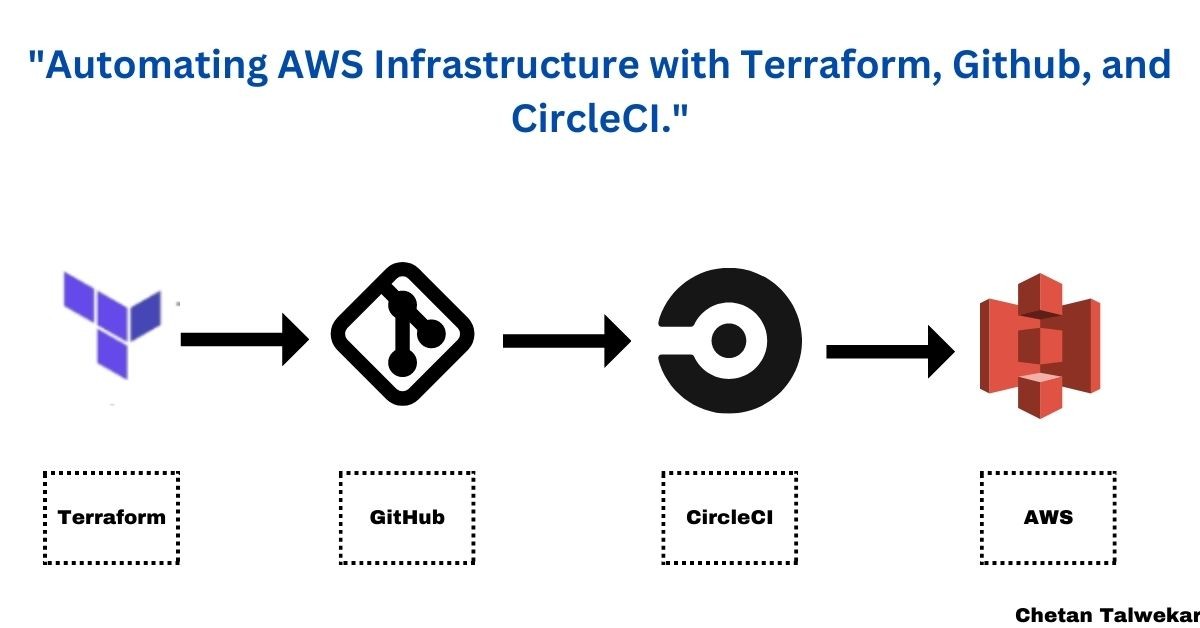
Automating AWS Infrastructure with Terraform, Github, and CircleCI
In today's world, where digital transformation is leading the way, infrastructure automation has become a crucial part of achieving success in the IT industry. It helps developers save time and effort, can reduce human errors, and enhances productivity.
In this article, we will demonstrate how to integrate Terraform, Github, and CircleCI for the automation of AWS infrastructure.
Pre-requisites:
1. a Basic understanding of AWS infrastructure components
2. Basic knowledge of GitHub
3. CircleCI account
4. Terraform installed a step-by-step guide to automating infrastructure using Terraform, Git, CircleCI, and AWS:
Ø Set up a GitHub repository:
·Create a new repository on GitHub to host your Terraform code and other project files.
Ø Install Terraform:
·Install Terraform on your local machine by following the official installation instructions for your operating system.
· Verify the installation by running Terraform version in your terminal.
Ø Set up AWS credentials:
· Create a new IAM user in the AWS Management Console with the necessary permissions for your Terraform operations.
· Obtain access and secret keys for the IAM user.
· Initialize Terraform:
·Clone the GitHub repository to your local machine using git clone <repository-url>.
· Navigate to the repository directory using cd <repository-name>.
· Run Terraform init to initialize Terraform and download the required provider plugins.
Ø Write Terraform configuration:
· Create a new Terraform configuration file (e.g., main.tf) in the repository directory.
· Define your infrastructure resources using the Terraform language (HCL) syntax in the configuration file.
· Add any necessary variables, outputs, or modules to organize and parameterize your infrastructure code.
Ø Version control your Terraform code:
· Add the Terraform configuration file (main.tf) and other project files to the repository using git add ..
· Commit the changes using git commit -m "Initial commit" and push to the remote repository using git push origin main.
Ø Set up a CircleCI account:
· Sign up for a CircleCI account if you don't have one.
· Connect your GitHub account with CircleCI to access your repositories.
Ø Configure AWS credentials in CircleCI:
· In CircleCI, navigate to your project's settings and click on "Environment Variables".
· Add environment variables for AWS access and secret keys with the corresponding values obtained from Step 3.
Ø Create a CircleCI configuration file:
· In your repository, create a new directory named .circleci.
· Inside the .circleci directory, create a configuration file named config.yml.
Ø Define the CircleCI pipeline:
· Open the config.yml file and define the pipeline steps using CircleCI's YAML syntax.
·Configure jobs, steps, and workflows according to your requirements.
·Include steps to install Terraform, authenticate with AWS, and execute Terraform commands like terraform init, terraform validate, and terraform apply.
Ø Commit and push the CircleCI configuration file:
· Add the .circleci/config.yml file to the repository using git add file name
· Commit the changes using git commit -m "Add CircleCI configuration" and push to the remote repository using git push origin main.
Ø Verify the pipeline:
· Open the CircleCI dashboard and navigate to your project.
· CircleCI will automatically trigger a build for the latest commit.
· Monitor the build logs and verify that the Terraform commands execute successfully.
Ø Monitor and iterate:
·Monitor subsequent pipeline runs and make any necessary changes to your Terraform configuration or CircleCI pipeline.
Ø To configure AWS credentials in CircleCI, follow these steps:
1. Open your CircleCI project's settings page.
2. In the left sidebar, click on "Environment Variables".
3. Click on the "Add Environment Variable" button.
4. In the "Name" field, enter AWS_ACCESS_KEY_ID.
5. In the "Value" field, enter the access key ID of your AWS IAM user.
6. Click on the "Add Environment Variable" button again.
7. In the "Name" field, enter AWS_SECRET_ACCESS_KEY.
8. In the "Value" field, enter the secret access key of your AWS IAM user.
9. Optionally, you can also add other AWS-related environment variables like AWS_DEFAULT_REGION or AWS_SESSION_TOKEN if required for your specific setup.
10. Click on the "Add Environment Variable" button to save the variables.
Ø Define the CircleCI pipeline:
Obtain a GitHub personal access token:
Ø Configure the GitHub token in CircleCI:
Ø Update your Terraform configuration:
provider "github" {
token = env (github_token)
Recommended by LinkedIn
}
In your .circleci/config.yml file, add a new environment variable step before the Terraform apply step.
The step should set the GITHUB_TOKEN environment variable using the value from CircleCI's environment variables.
version: 2.1
jobs:
build:
docker:
- image: circleci/python:3.8
steps:
- checkout
# Install Terraform
- run:
name: Install Terraform
command: |
curl -LO https://releases.hashicorp.com/terraform/0.15.5/terraform_0.15.5_linux_amd64.zip
unzip terraform_0.15.5_linux_amd64.zip
sudo mv terraform /usr/local/bin/
# Create .aws directory
- run:
name: Create .aws directory
command: mkdir -p ~/.aws
# Authenticate with AWS
- run:
name: Configure AWS credentials
command: |
echo -e "[default]\naws_access_key_id=$AWS_ACCESS_KEY_ID\naws_secret_access_key=$AWS_SECRET_ACCESS_KEY" > ~/.aws/credentials
echo -e "[default]\nregion=$AWS_DEFAULT_REGION" > ~/.aws/config
# Initialize Terraform
- run:
name: Initialize Terraform
command: terraform init
# Validate Terraform configuration
- run:
name: Validate Terraform configuration
command: terraform validate
# Apply Terraform changes
- run:
name: Apply Terraform changes
command: terraform apply -auto-approve
# Set GitHub token environment variable
- run:
name: Set GitHub token environment variable
command: echo "export GITHUB_TOKEN=$GITHUB_TOKEN" >> $BASH_ENV && source $BASH_ENV
workflows:
version: 2
build_and_deploy:
jobs:
- build
Ø Use the following commands to commit and push the changes:
git add file name
git commit -m "Update infrastructure with Terraform"
git push origin master


Nicely articulated!